Configure Neovim – Terminal Management with toggleterm.nvim
Published on Mar 30, 2026
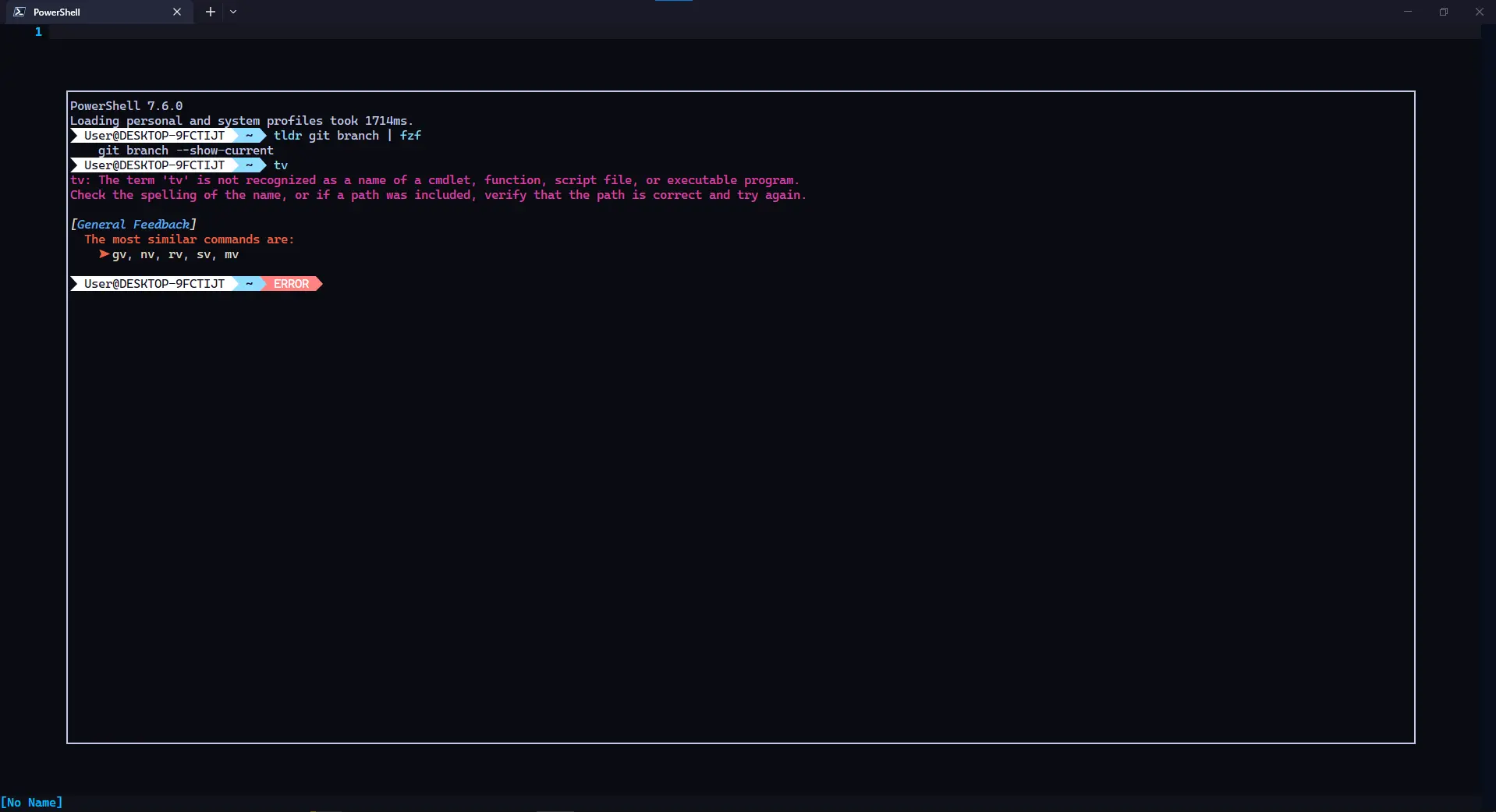
We have been building up our Neovim configuration one post at a time. At this point we have an LSP, autocompletion, formatting, and a focused writing mode. Something we still reach outside the editor for, though, is the terminal. Running a test suite, checking git output, or starting a dev server all means switching away from Neovim and back. That interrupts the flow of work in a way that the other plugins we have installed do not.
Toggleterm.nvim solves this. It is a plugin by akinsho that manages persistent terminal windows inside Neovim. You can open a terminal in a floating window, in a horizontal split at the bottom of the screen, or in a vertical split beside your code. The terminal stays alive in the background when you close the window — the next time you open it, the session is exactly where you left it. You can run multiple terminals at the same time and switch between them with a count. The plugin also exposes a Terminal class that lets you create dedicated terminals for specific programs, so tools like lazygit, htop, or a Python REPL each get their own persistent window and keymap.
Prerequisites
Before continuing, make sure you have the following in place from earlier posts in this series:
- Lazy.nvim set up as your plugin manager
- The folder structure
lua/config/andlua/plugins/inside your Neovim config directory
There are no external dependencies for toggleterm.nvim itself. The tools you might want to run inside custom terminals — lazygit, for example — need to be installed separately on your system, but the plugin itself has no requirements beyond Neovim 0.7 or later.
Installing toggleterm.nvim
Inside lua/plugins/, create a new file called terminal.lua.
-- lua/plugins/terminal.lua

return {
  "akinsho/toggleterm.nvim",
  version = "*",
  event   = "VeryLazy",
  opts = {
    size = function(term)
      if term.direction == "horizontal" then
        return 15
      elseif term.direction == "vertical" then
        return math.floor(vim.o.columns * 0.4)
      end
    end,
    open_mapping      = [[<C-\>]],
    hide_numbers      = true,
    autochdir         = true,
    start_in_insert   = true,
    insert_mappings   = true,
    terminal_mappings = true,
    persist_size      = true,
    persist_mode      = true,
    direction         = "float",
    close_on_exit     = true,
    shell             = vim.o.shell,
    auto_scroll       = true,
    float_opts = {
      border   = "curved",
      winblend = 0,
    },
  },
}
Save the file and run :Lazy sync. Once the install completes, press <C-\> (Control+backslash) to open a floating terminal. Press <C-\> again to close it. The session persists — if you run a command and then close the window, reopening it will bring the same session back.
Understanding the Key Options
Let me walk through the options that are most important to understand.
size accepts either a number or a function. Since the size needs to be different depending on whether the terminal is horizontal or vertical, we use a function that checks the current direction. For horizontal splits we use a fixed 15-row height. For vertical splits we calculate 40% of the editor width so the terminal column does not crowd the code.
open_mapping is the global key that toggles the default terminal. [[<C-\>]] is the double-bracket Lua literal for the Control+backslash key combination. This mapping is active in both normal and insert mode because insert_mappings and terminal_mappings are both set to true, meaning you can toggle the terminal without first pressing Escape to leave insert mode.
direction controls the default layout when you open a terminal with the open_mapping. We set it to "float" so the default terminal opens as a centred floating window. When you want a horizontal or vertical split instead, you can pass the direction as a command argument — we will wire that up with dedicated keymaps in a moment.
persist_mode means that when you leave a terminal window and return to it later, the mode you were in (insert or normal) is restored. Without this, the terminal always returns to normal mode, which means you have to press i every time before you can type a command.
autochdir tells the terminal to automatically change its working directory to match the directory of the file you currently have open. So if you are editing a file inside src/components/, opening the terminal drops you into that directory rather than the project root. This is convenient for running commands that are context-sensitive.
Adding Layout Keymaps
The default <C-\> mapping always opens the floating terminal. It is useful to have dedicated shortcuts for horizontal and vertical layouts as well, particularly when you want to keep a terminal visible alongside your code. Add a keys field to the plugin spec:
keys = {
  { "<leader>tf", "<cmd>ToggleTerm direction=float<cr>",      desc = "Terminal: float" },
  { "<leader>th", "<cmd>ToggleTerm direction=horizontal<cr>", desc = "Terminal: horizontal" },
  { "<leader>tv", "<cmd>ToggleTerm direction=vertical<cr>",   desc = "Terminal: vertical" },
  { "<leader>t1", "<cmd>1ToggleTerm<cr>",                     desc = "Terminal 1" },
  { "<leader>t2", "<cmd>2ToggleTerm<cr>",                     desc = "Terminal 2" },
  { "<leader>t3", "<cmd>3ToggleTerm<cr>",                     desc = "Terminal 3" },
},
The numbered commands — :1ToggleTerm, :2ToggleTerm, and so on — open or toggle a specific terminal instance. Each instance is independent. You can have a terminal running a dev server on instance 1, a test watcher on instance 2, and a general-purpose shell on instance 3, and switch between them freely.
Terminal Navigation Keymaps
Neovim’s terminal mode has some ergonomic rough edges. By default, pressing Escape in a terminal buffer does not exit terminal mode — instead you have to press <C-\><C-n>, which is awkward to type. Navigating from a terminal window to a code window requires the same prefix. We can fix both of these by adding a config function to the plugin spec that sets up buffer-local keymaps whenever a terminal opens.
Replace the opts = { ... } field in the spec with a config function:
config = function(_, opts)
  require("toggleterm").setup(opts)

  local function set_terminal_keymaps()
    local o = { buffer = 0 }
    -- exit terminal mode with Escape or jk
    vim.keymap.set("t", "<Esc>", [[<C-\><C-n>]],       o)
    vim.keymap.set("t", "jk",    [[<C-\><C-n>]],       o)
    -- navigate to adjacent windows without leaving terminal mode
    vim.keymap.set("t", "<C-h>", [[<C-\><C-n><C-W>h]], o)
    vim.keymap.set("t", "<C-j>", [[<C-\><C-n><C-W>j]], o)
    vim.keymap.set("t", "<C-k>", [[<C-\><C-n><C-W>k]], o)
    vim.keymap.set("t", "<C-l>", [[<C-\><C-n><C-W>l]], o)
    -- scroll up and down through terminal output
    vim.keymap.set("t", "<C-u>", [[<C-\><C-n><C-u>]],  o)
    vim.keymap.set("t", "<C-d>", [[<C-\><C-n><C-d>]],  o)
  end

  vim.api.nvim_create_autocmd("TermOpen", {
    pattern  = "term://*toggleterm#*",
    callback = set_terminal_keymaps,
  })
end,
The TermOpen autocommand fires whenever a new terminal buffer is created. Restricting the pattern to term://*toggleterm#* means these keymaps only apply to toggleterm terminals, not to other terminal buffers that Neovim might open.
With <Esc> mapped to exit terminal mode, you can press it once to leave insert mode in the terminal and use standard Neovim motions to scroll through or copy the terminal output. The window navigation shortcuts — <C-h>, <C-j>, <C-k>, <C-l> — mirror the standard Neovim split navigation keymaps, so jumping from a terminal to a code window feels the same whether you are in terminal mode or not.
Creating a Dedicated lazygit Terminal
One of the most powerful features of toggleterm.nvim is the Terminal class. It lets you create named terminal instances that run a specific program, are hidden from the normal toggle commands, and open in whatever layout you choose. lazygit is the obvious first candidate — it is a terminal UI for Git that many Neovim users rely on, and having it bound to a single key is a significant quality-of-life improvement.
Move the lazygit terminal setup inside the config function, after the TermOpen autocmd:
-- inside the config function, after set_terminal_keymaps

local Terminal = require("toggleterm.terminal").Terminal

local lazygit = Terminal:new({
  cmd       = "lazygit",
  dir       = "git_dir",
  direction = "float",
  hidden    = true,
  float_opts = { border = "curved" },
  on_open   = function(term)
    vim.cmd("startinsert!")
    vim.api.nvim_buf_set_keymap(
      term.bufnr, "n", "q",
      "<cmd>close<CR>",
      { noremap = true, silent = true }
    )
  end,
})

function _G._LAZYGIT_TOGGLE()
  lazygit:toggle()
end

vim.keymap.set("n", "<leader>gg", "<cmd>lua _G._LAZYGIT_TOGGLE()<CR>", {
  noremap = true,
  silent  = true,
  desc    = "Toggle lazygit",
})
Note: lazygit needs to be installed on your system for this to work. On Windows with winget, run
winget install JesseDuffield.lazygit. On macOS with Homebrew, runbrew install lazygit.
The hidden = true flag is important. It means this terminal instance will not respond to the normal <C-\> toggle or the :ToggleTerm command. It only opens and closes through the _G._LAZYGIT_TOGGLE function. This prevents it from appearing accidentally when you cycle through regular terminals.
Setting dir = "git_dir" tells toggleterm to open lazygit in the root of the current Git repository rather than the current working directory. This means lazygit always sees the full repository context regardless of which subdirectory your buffer is in.
Putting It All Together
Here is the complete lua/plugins/terminal.lua:
-- lua/plugins/terminal.lua

return {
  "akinsho/toggleterm.nvim",
  version = "*",
  event   = "VeryLazy",
  keys = {
    { "<leader>tf", "<cmd>ToggleTerm direction=float<cr>",      desc = "Terminal: float" },
    { "<leader>th", "<cmd>ToggleTerm direction=horizontal<cr>", desc = "Terminal: horizontal" },
    { "<leader>tv", "<cmd>ToggleTerm direction=vertical<cr>",   desc = "Terminal: vertical" },
    { "<leader>t1", "<cmd>1ToggleTerm<cr>",                     desc = "Terminal 1" },
    { "<leader>t2", "<cmd>2ToggleTerm<cr>",                     desc = "Terminal 2" },
    { "<leader>t3", "<cmd>3ToggleTerm<cr>",                     desc = "Terminal 3" },
  },
  config = function(_, opts)
    require("toggleterm").setup(opts)

    local function set_terminal_keymaps()
      local o = { buffer = 0 }
      vim.keymap.set("t", "<Esc>", [[<C-\><C-n>]],       o)
      vim.keymap.set("t", "jk",    [[<C-\><C-n>]],       o)
      vim.keymap.set("t", "<C-h>", [[<C-\><C-n><C-W>h]], o)
      vim.keymap.set("t", "<C-j>", [[<C-\><C-n><C-W>j]], o)
      vim.keymap.set("t", "<C-k>", [[<C-\><C-n><C-W>k]], o)
      vim.keymap.set("t", "<C-l>", [[<C-\><C-n><C-W>l]], o)
      vim.keymap.set("t", "<C-u>", [[<C-\><C-n><C-u>]],  o)
      vim.keymap.set("t", "<C-d>", [[<C-\><C-n><C-d>]],  o)
    end

    vim.api.nvim_create_autocmd("TermOpen", {
      pattern  = "term://*toggleterm#*",
      callback = set_terminal_keymaps,
    })

    local Terminal = require("toggleterm.terminal").Terminal
    local lazygit  = Terminal:new({
      cmd       = "lazygit",
      dir       = "git_dir",
      direction = "float",
      hidden    = true,
      float_opts = { border = "curved" },
      on_open   = function(term)
        vim.cmd("startinsert!")
        vim.api.nvim_buf_set_keymap(
          term.bufnr, "n", "q",
          "<cmd>close<CR>",
          { noremap = true, silent = true }
        )
      end,
    })

    function _G._LAZYGIT_TOGGLE()
      lazygit:toggle()
    end

    vim.keymap.set("n", "<leader>gg", "<cmd>lua _G._LAZYGIT_TOGGLE()<CR>", {
      noremap = true,
      silent  = true,
      desc    = "Toggle lazygit",
    })
  end,
  opts = {
    size = function(term)
      if term.direction == "horizontal" then
        return 15
      elseif term.direction == "vertical" then
        return math.floor(vim.o.columns * 0.4)
      end
    end,
    open_mapping      = [[<C-\>]],
    hide_numbers      = true,
    autochdir         = true,
    start_in_insert   = true,
    insert_mappings   = true,
    terminal_mappings = true,
    persist_size      = true,
    persist_mode      = true,
    direction         = "float",
    close_on_exit     = true,
    shell             = vim.o.shell,
    auto_scroll       = true,
    float_opts = {
      border   = "curved",
      winblend = 0,
    },
  },
}
Wrapping Up
With toggleterm.nvim in place, the terminal is no longer something that pulls us out of Neovim. We can run commands, watch test output, and manage git history without ever leaving the editor. The floating terminal handles quick one-off commands, the horizontal split is good for watching long-running processes, and the lazygit terminal gives us a full git UI bound to a single key.
In the next post we will step outside of Neovim entirely and look at the terminal emulator that hosts it all — WezTerm. If you are on Windows and looking for a better terminal than the default Windows Terminal, this post is for you.
To find the rest of my posts on Neovim, click here.